Tutorial: Demo
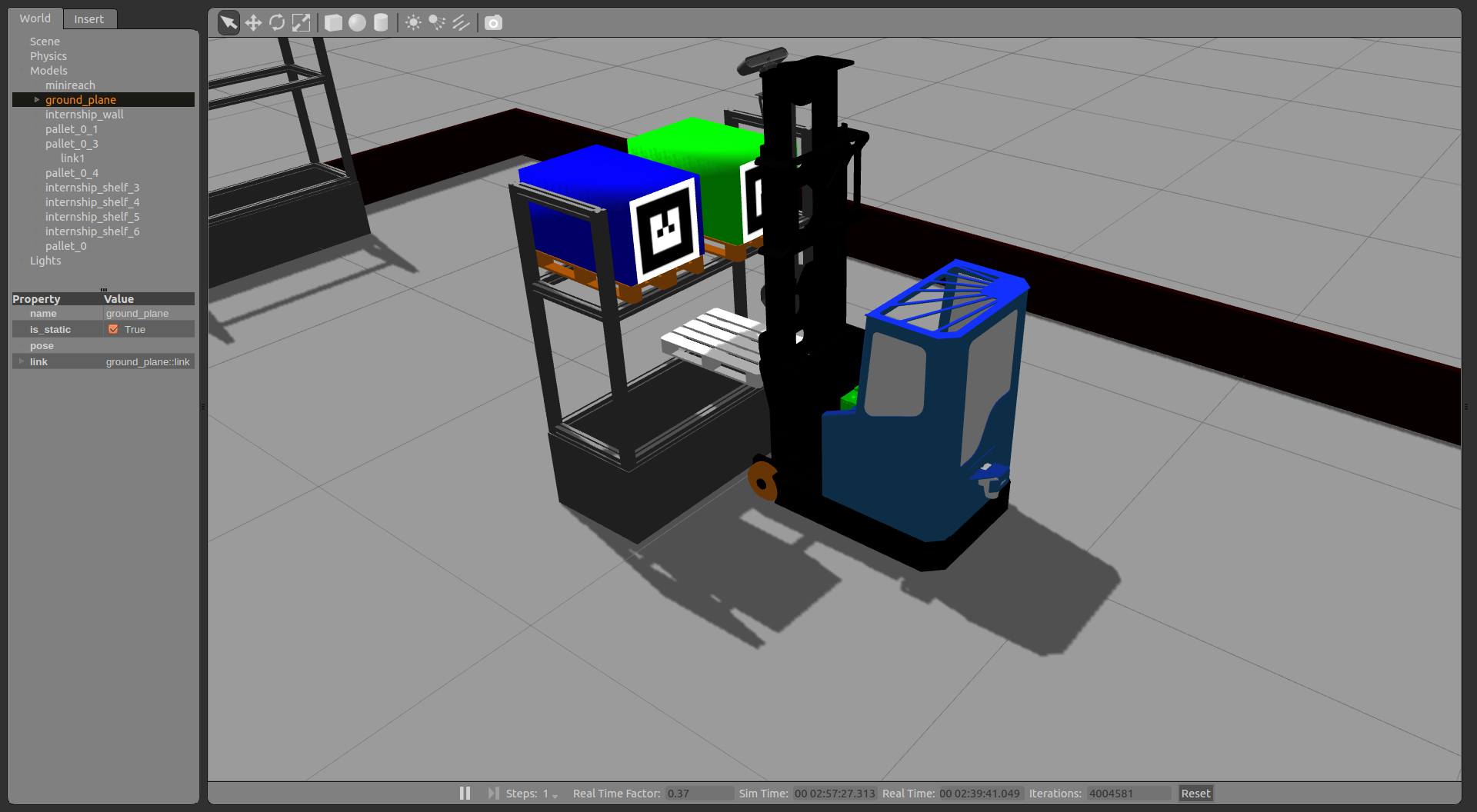
The goal of this tutorial is to make the simulated truck move pallets between storage locations in diffrent racks.
We first start the system in “monosim” mode by running the terminal command
roslaunch minireach_gazebo monosim.launch
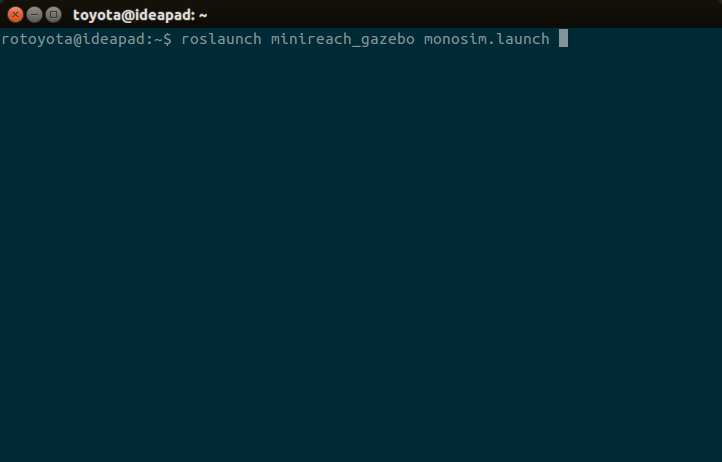
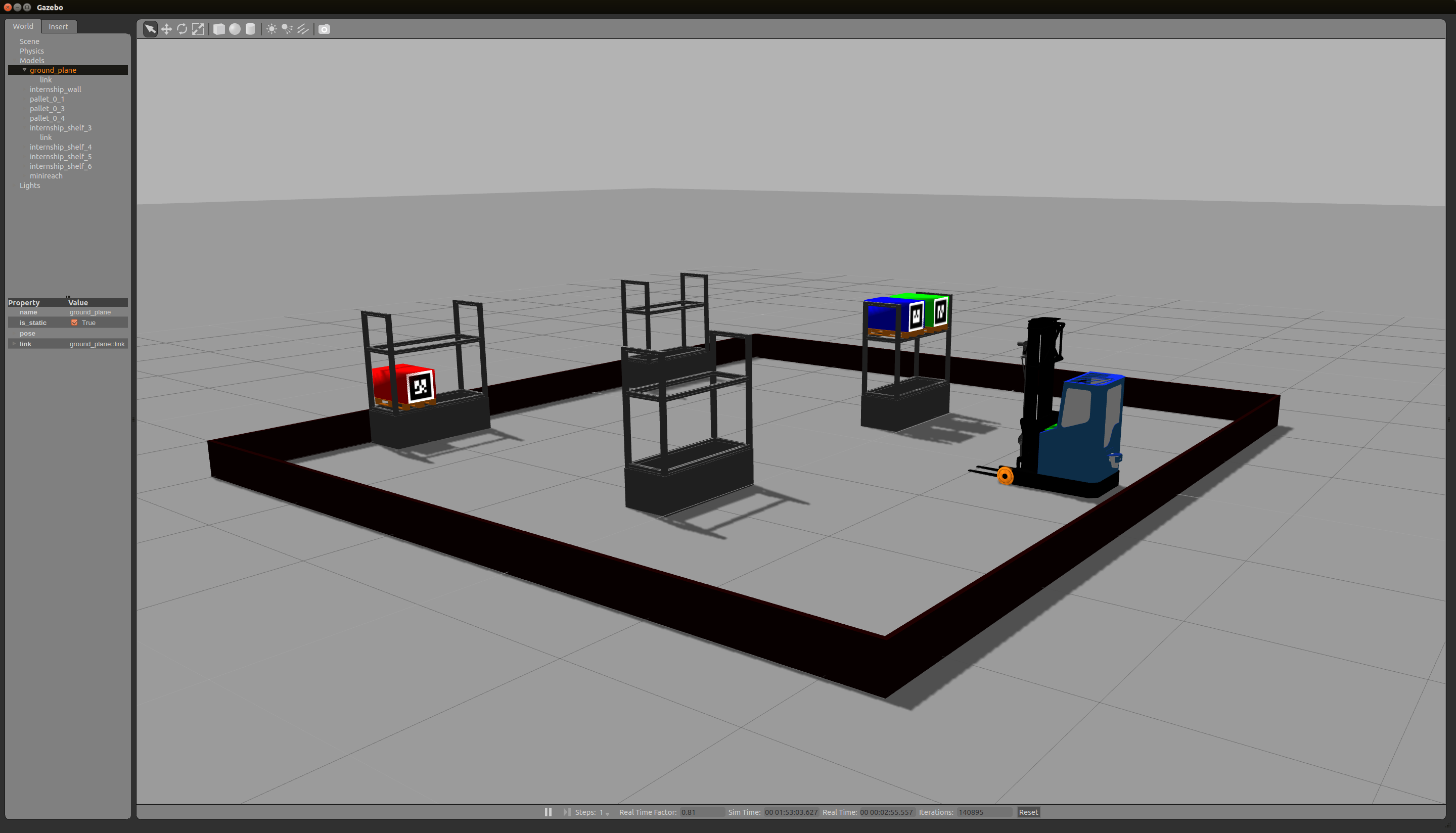
If everything is correctly installed two new windows should now open, Gazebo client and rocon_remcon.
Using rocon_remocon
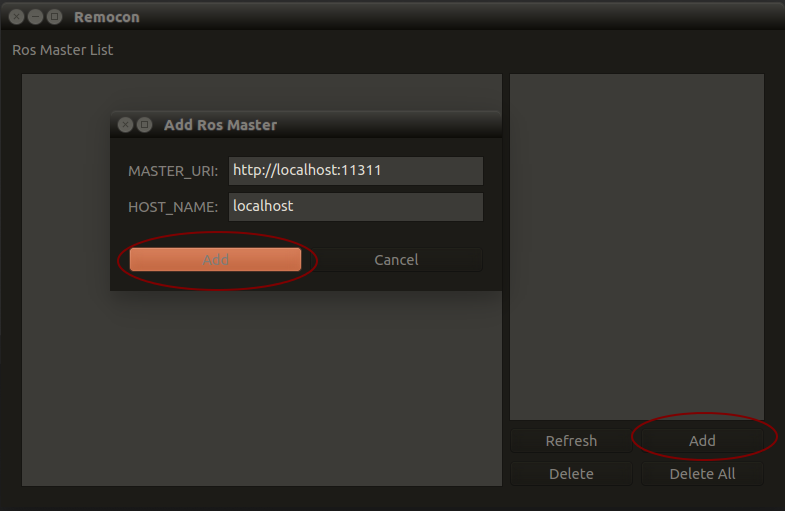
Qt remocon is part of the Robotics In Concert framework, often refered to as rocon. This is a simple graphical interface that allows you to interact with compatible robots/trucks.
If you have a clean install, the Ros Master List will be empty. To add a new Ros Master press the Add button.
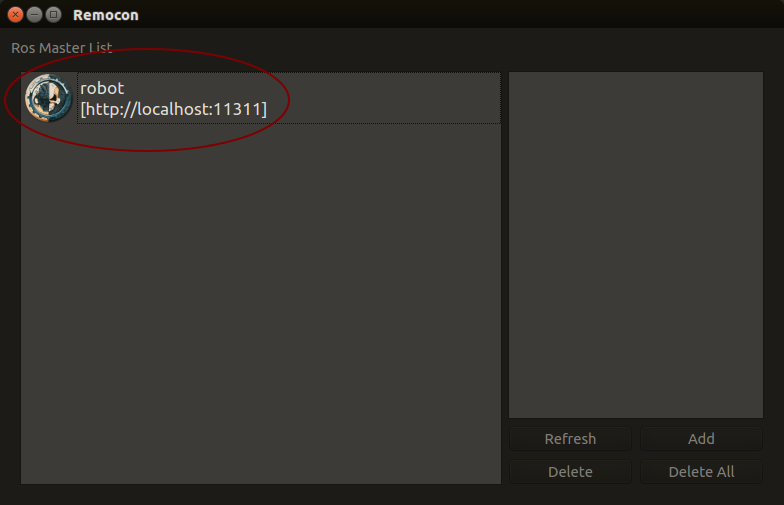
Ros Master List should now have an entry with your trucks name, default name is robot. Doubleclick this entry to continue.
Note
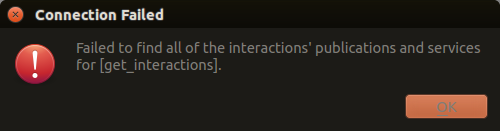
Sometimes a part of the interface system does not start property. You will then get the error message seen below. This should go away if you restart monosim but you may sometimes need to log out from your linux user and log back in again to make it work.
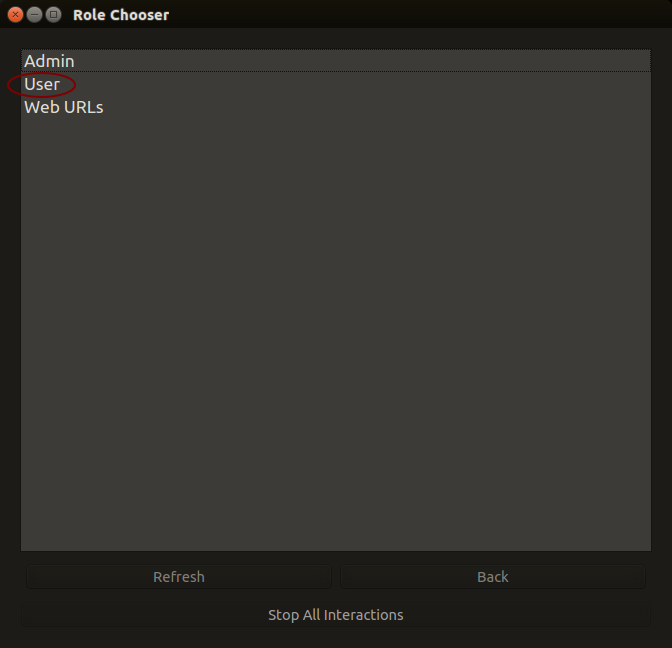
Dubbleclick User to see available Robot Apps or rapps.
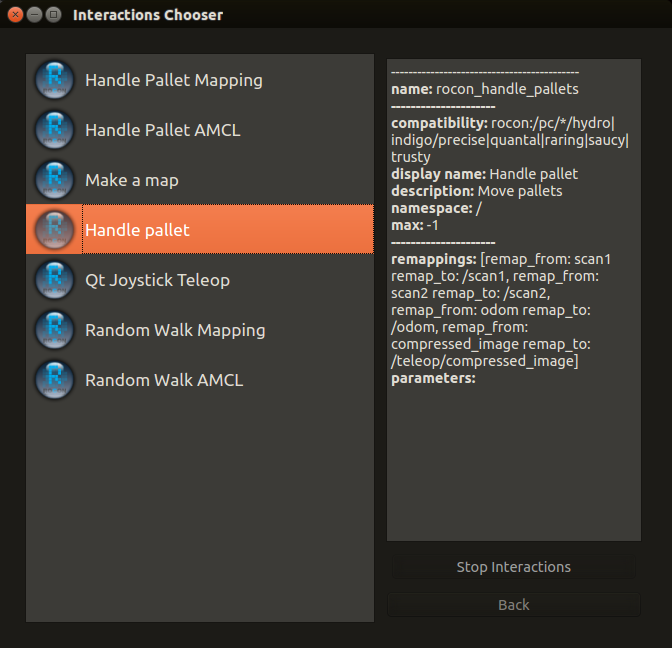
In this demo we will use the Handle Pallet rapp, so dubbleclick on that to start it.
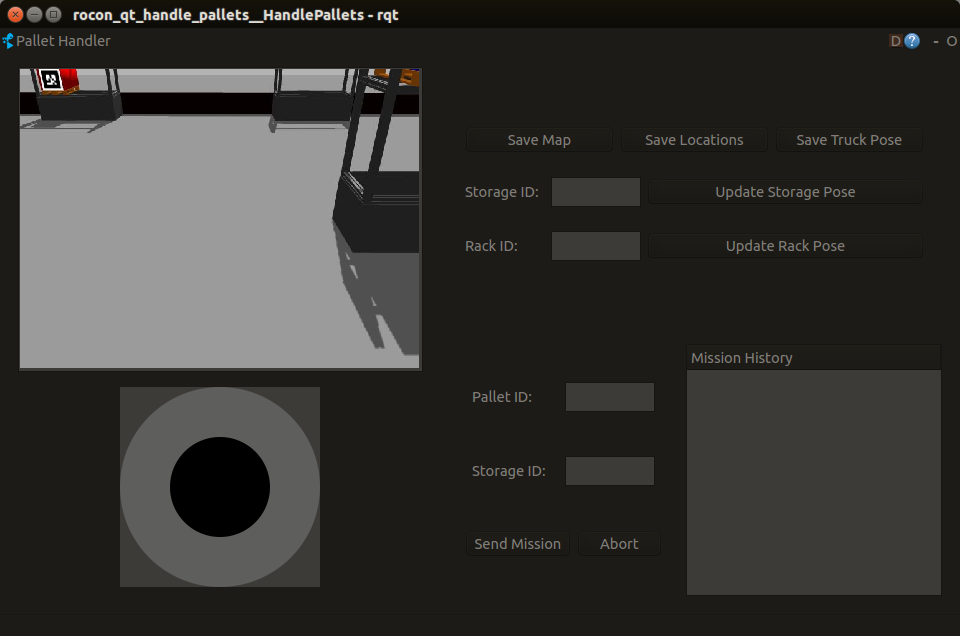
The rapp interface in the image below should pop up on your screen after a while.
We could start using the rapp to move pallets now, but to get a better idea about what is going on we sould start a vizualisation tool first. Click Back to return to the Role Chooser.
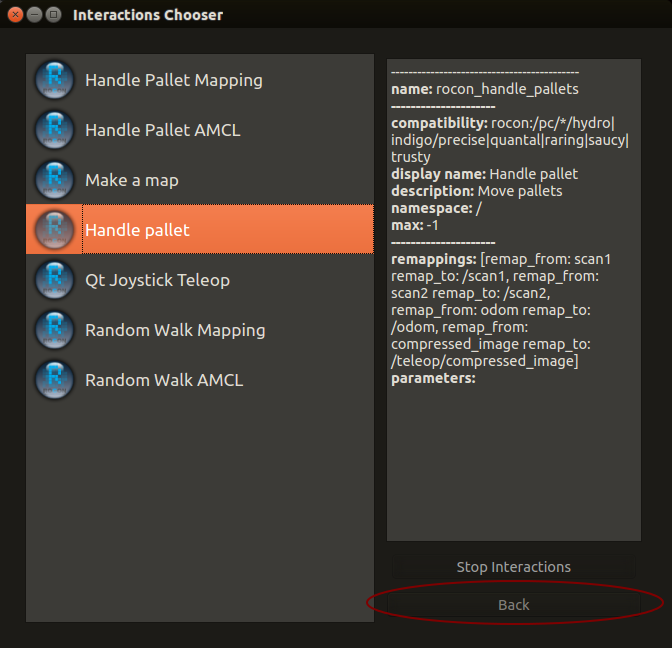
This time Select Admin in staid of User in the interface.
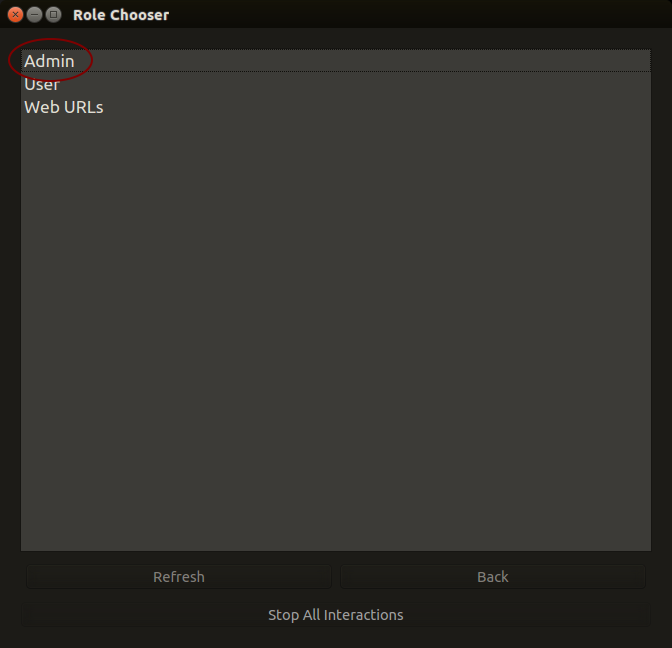
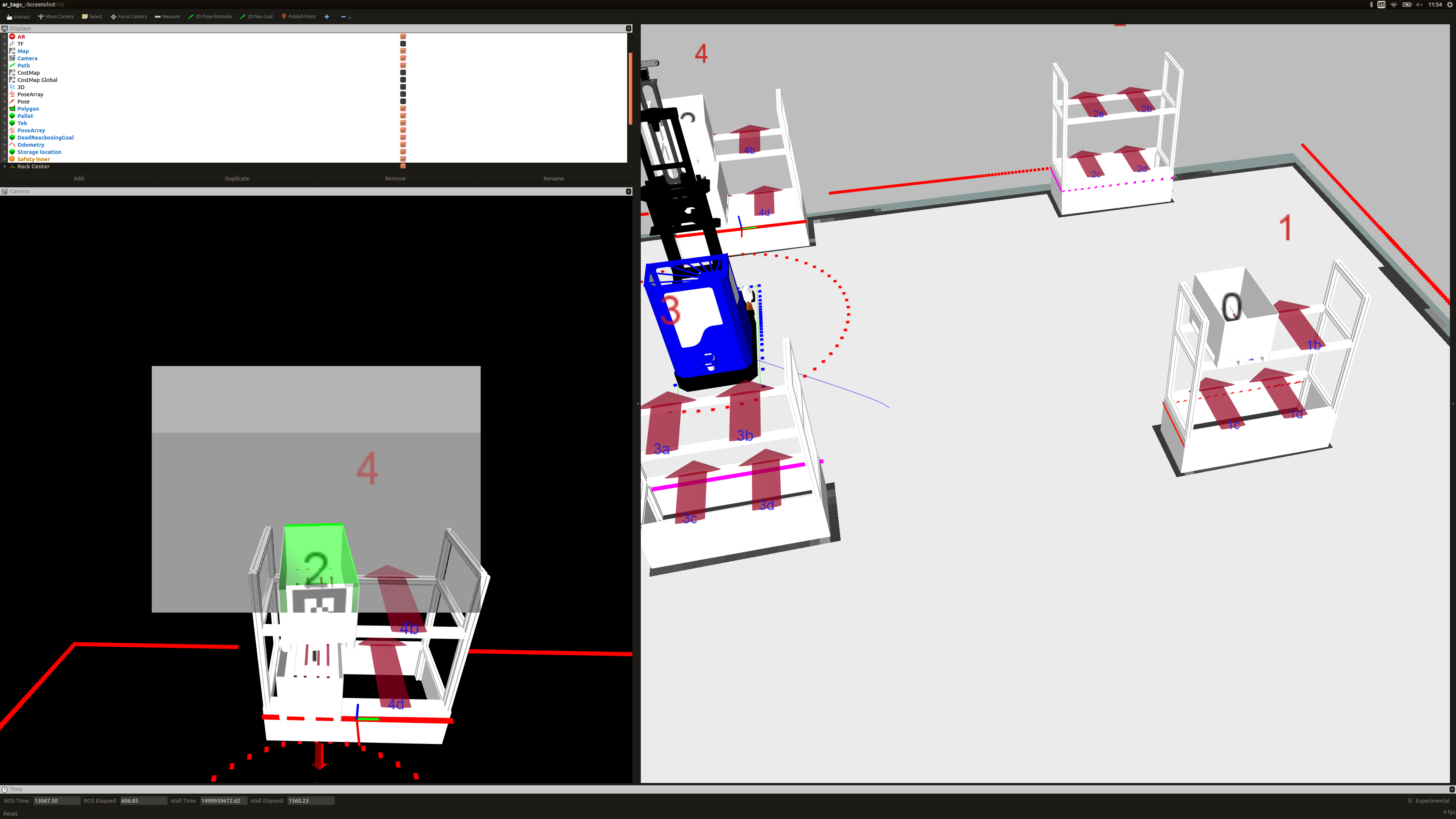
This will give us access to “start buttons” for several vizualisation tools. The one will want to start now is called rviz This tool displays sensor data and what the truck “knows” about its environment.

You can now move the truck by sending waypoints or a so called Navigation Goal by pressing the button in rviz the on the position in the map where you want the truck to go.
See the tutorial on using RVIZ with navigation in the RVIZ documentation.

In order to tell the truck to move pallets between racks we need to assign IDs to them. We can add a rack with an ID by:
- Driving up to a rack.
- Pointing the forks towards the rack until a marker appears in the front center of it.
- Entering a number into the Rack ID field and clicking Update Rack Pose.
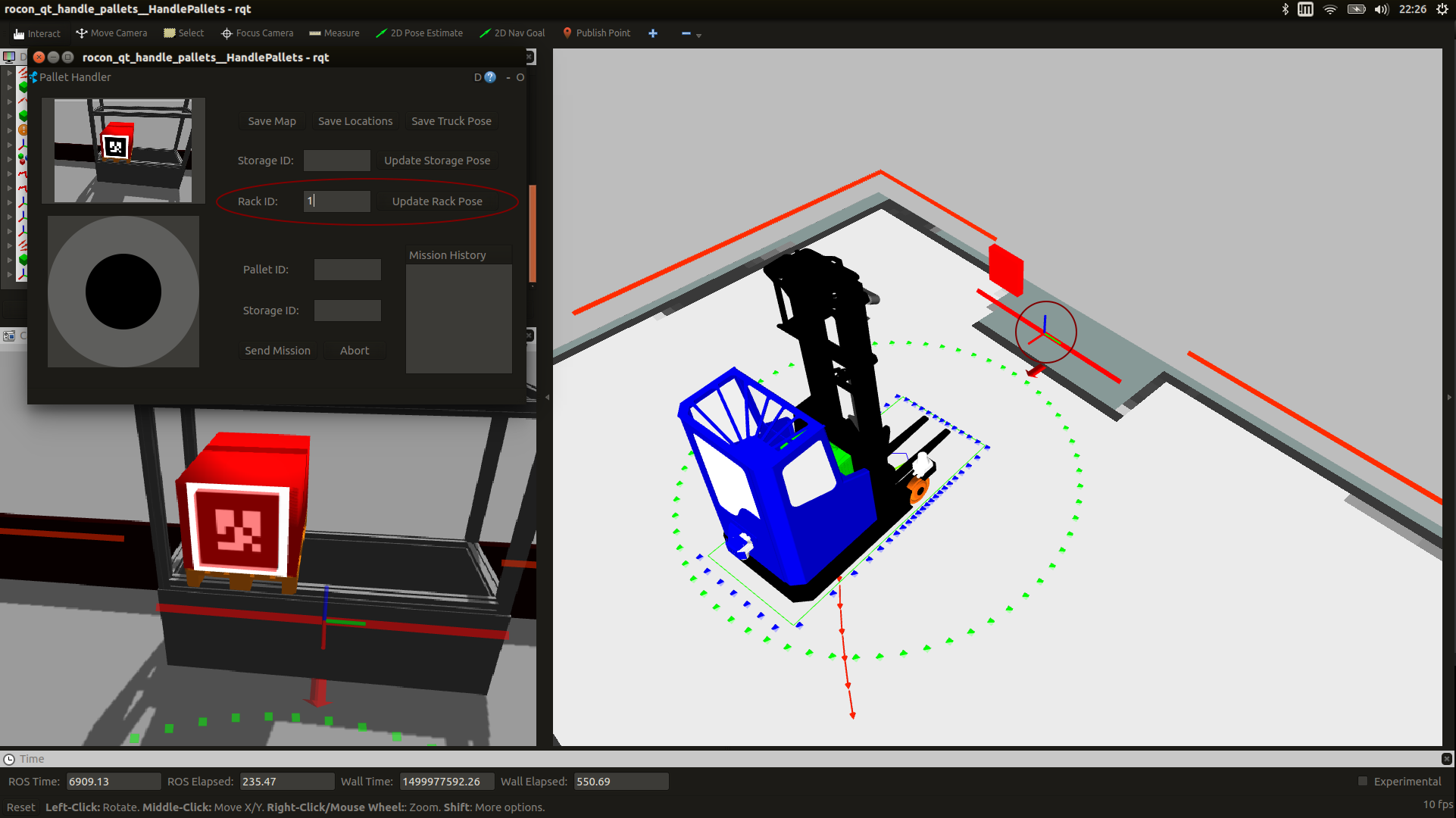
Pallets with AR-tags (detected by the camera) are automaticly added (with IDs based on the ID of the tag) if they are close enough to a storage location in a rack.
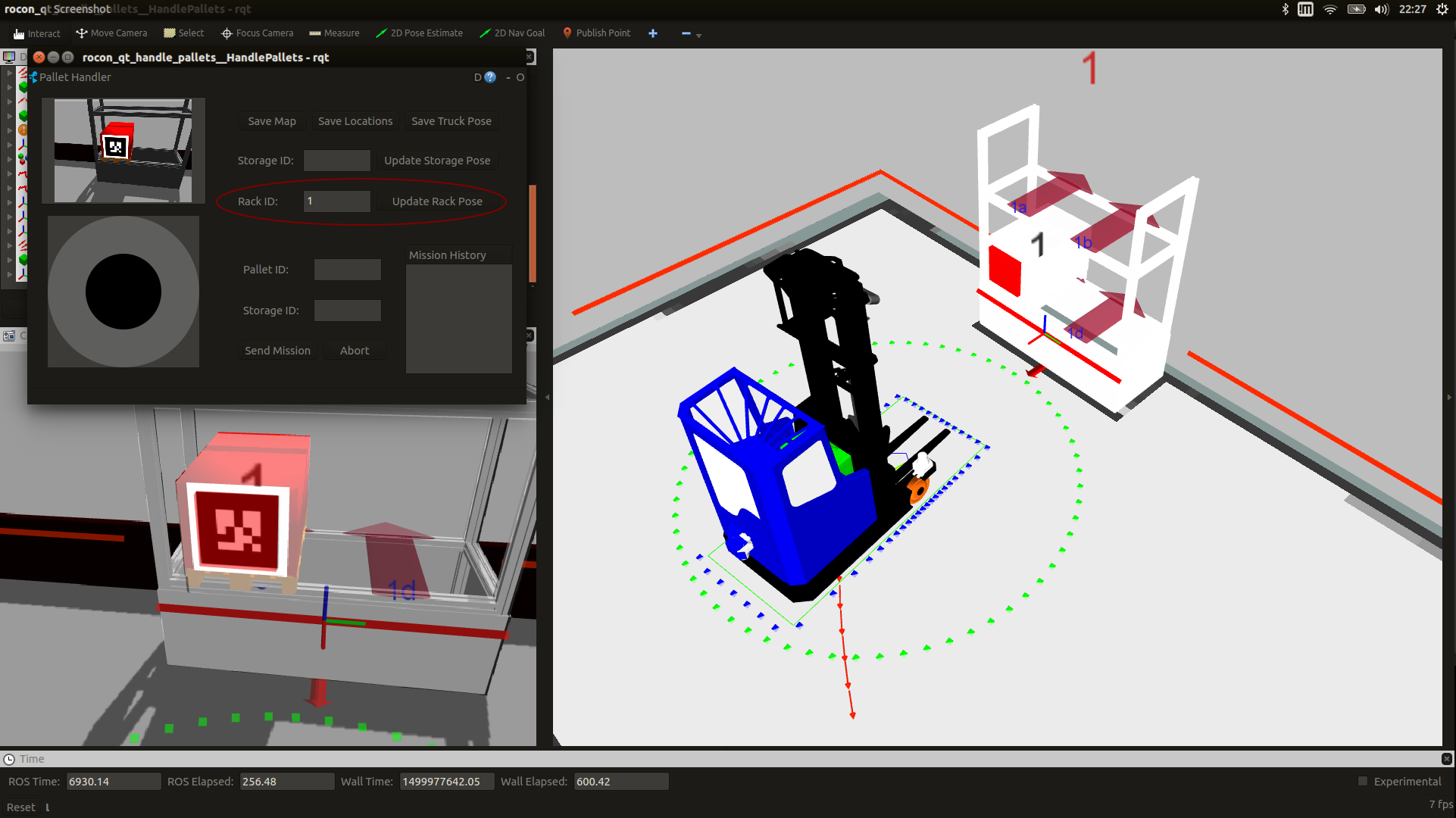
At this point we could start moving the already detected pallet to other storage locations in the same rack, but let’s add some more racks before we do anything else.
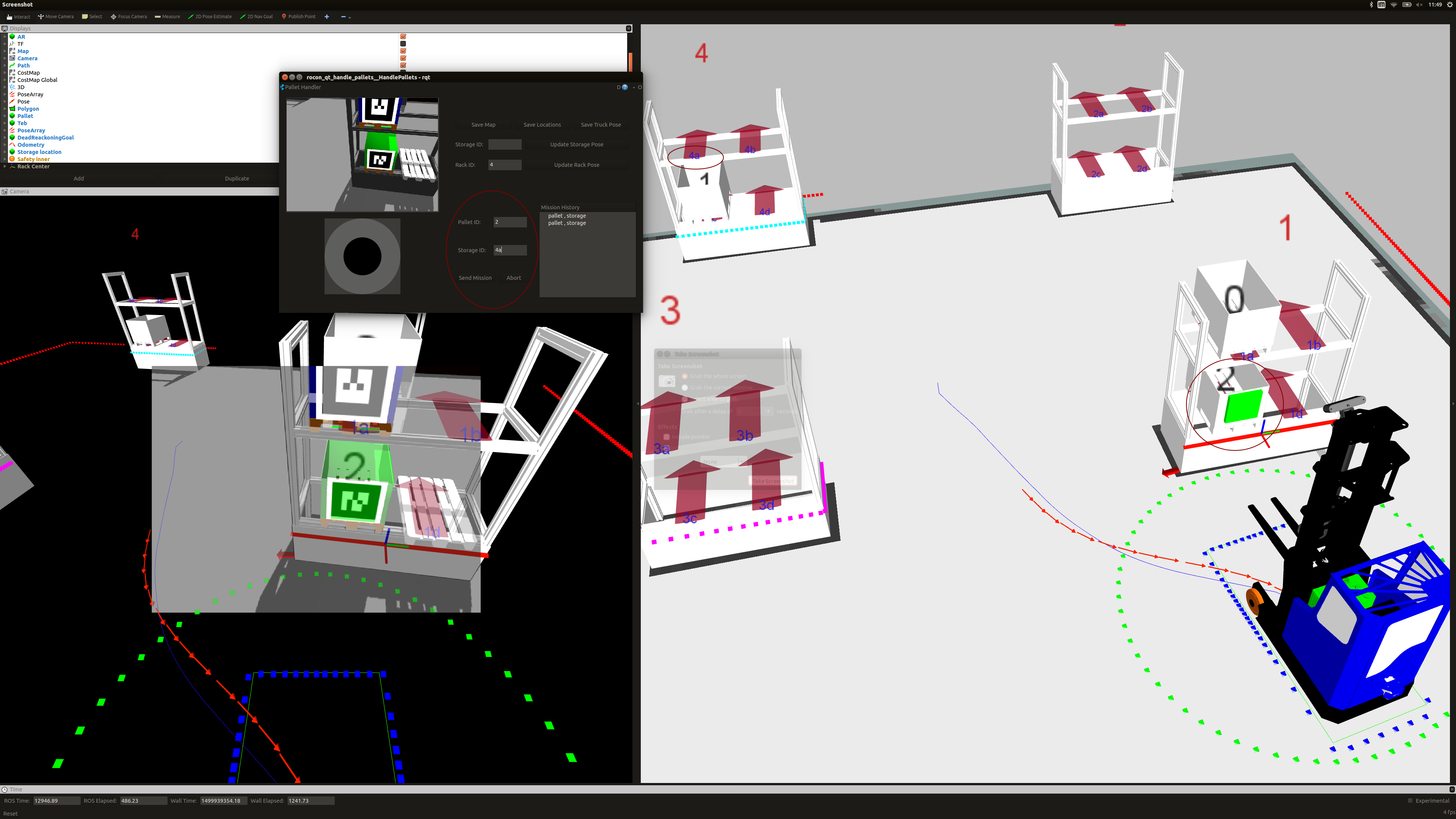
- To start moving pallets do the following:
- Enter a Pallet ID in the interface.
- Enter a Storage ID in the interface.
- Click the Send Mission button.
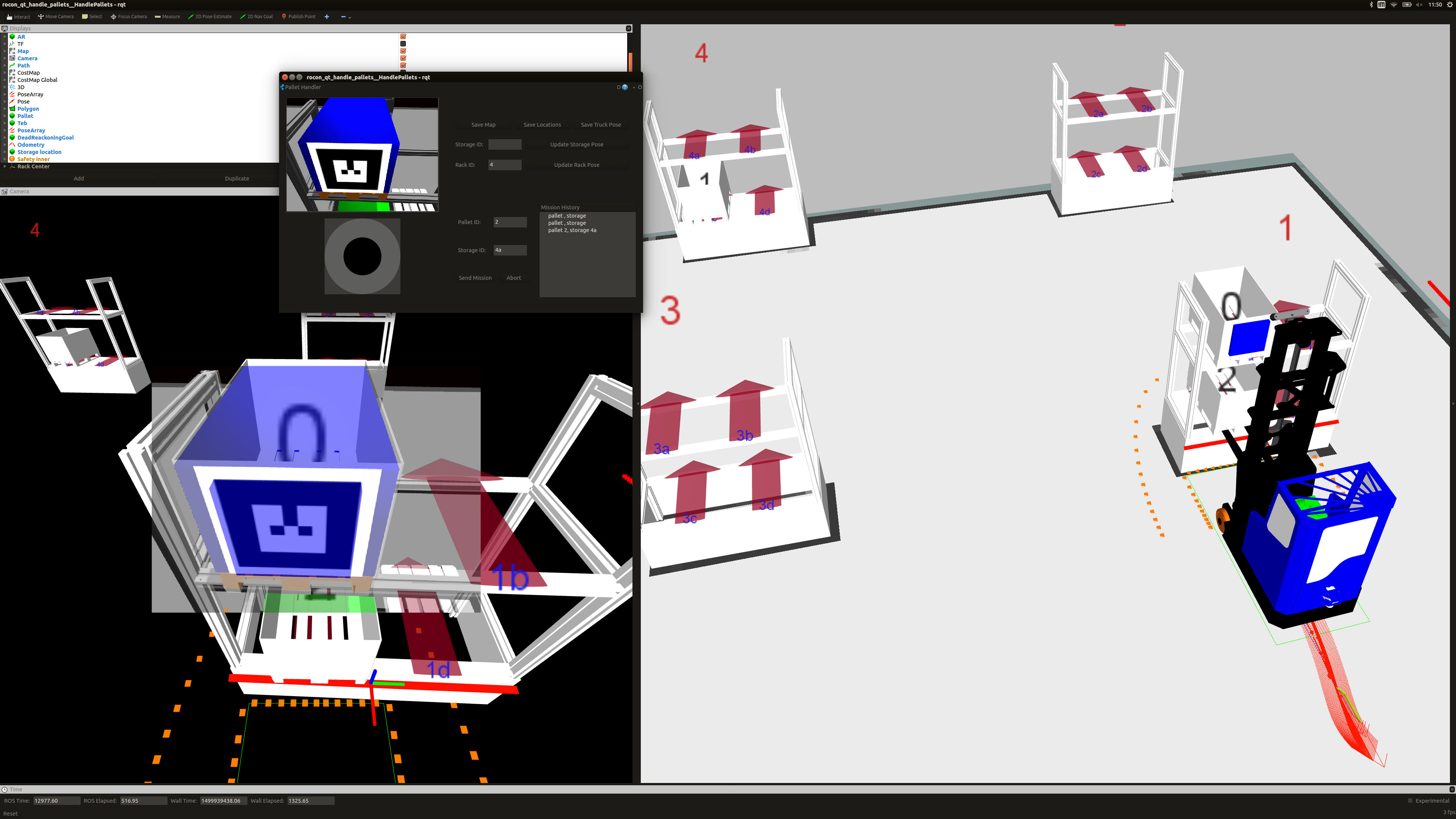
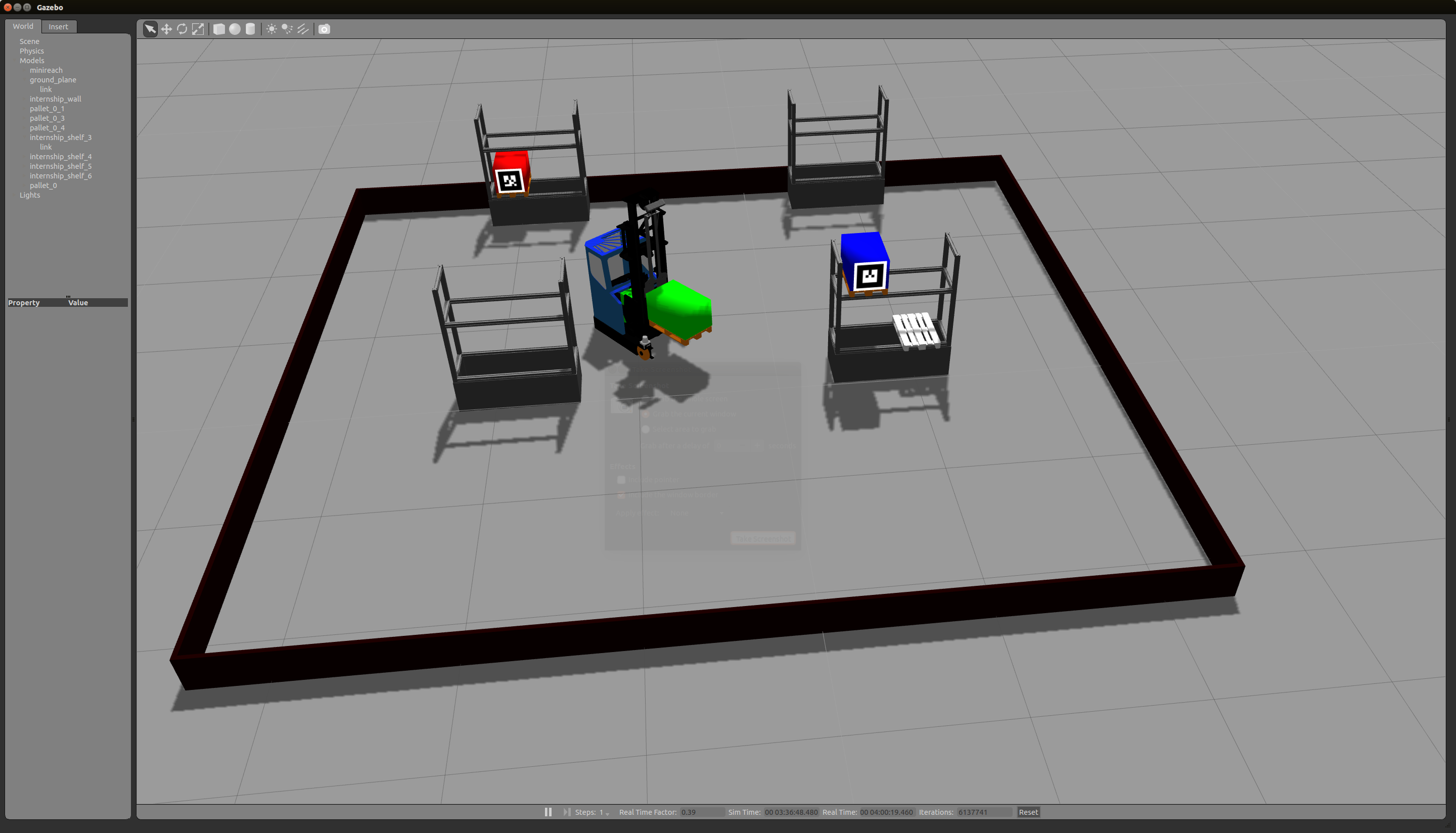
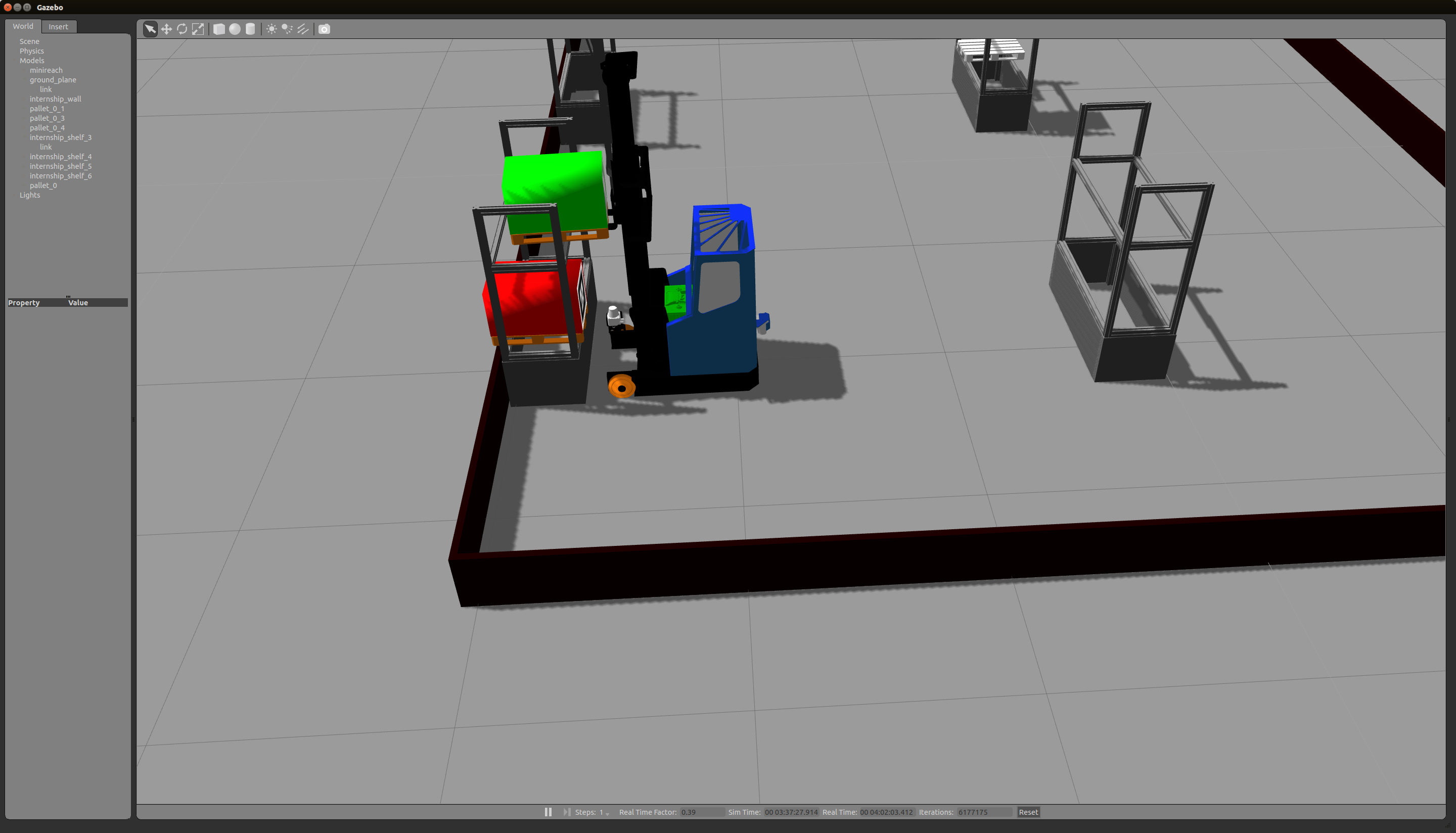
Moving an empty pallet (no AR-marker)
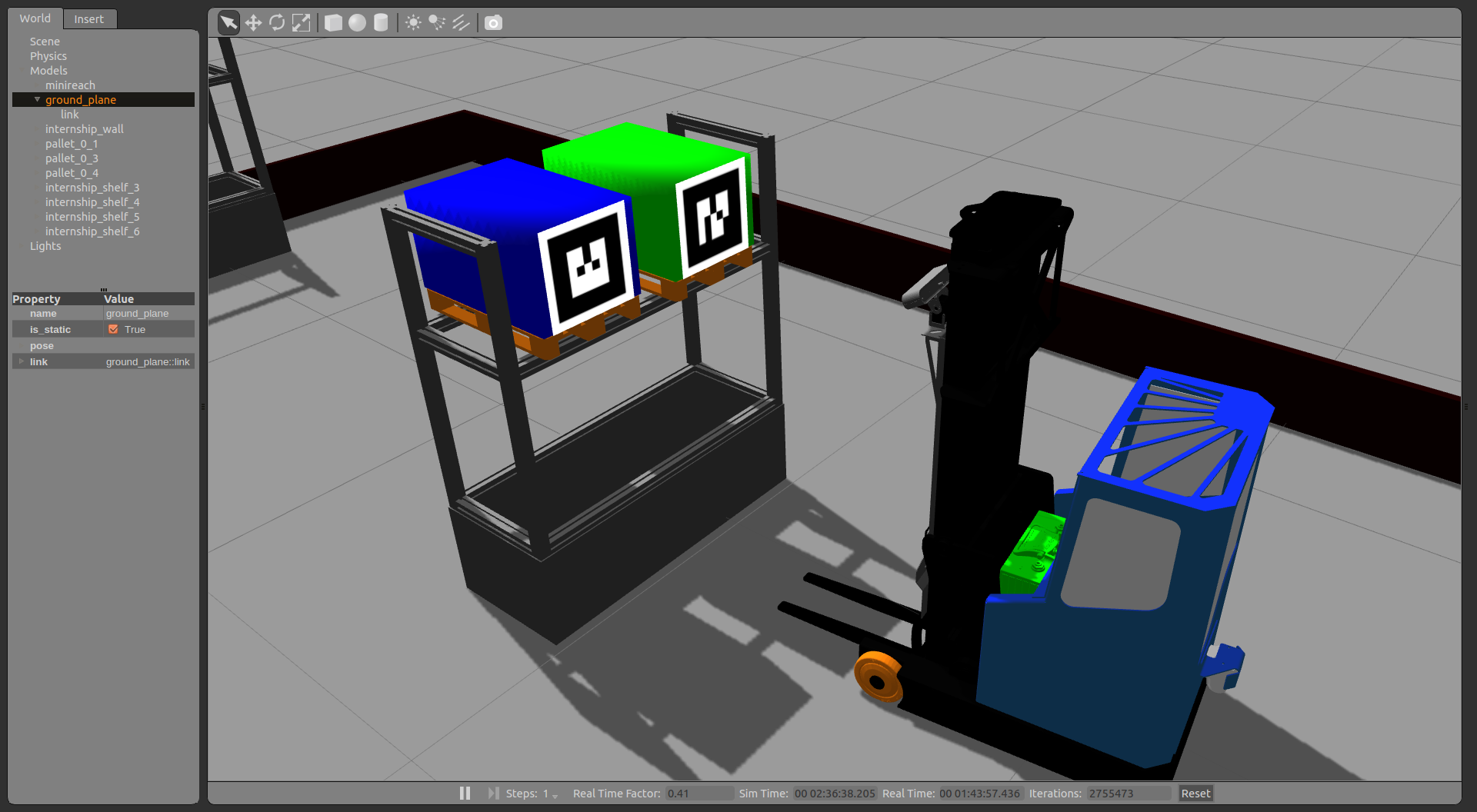
If there are no empty pallets in the simulation environment, you need to add one.
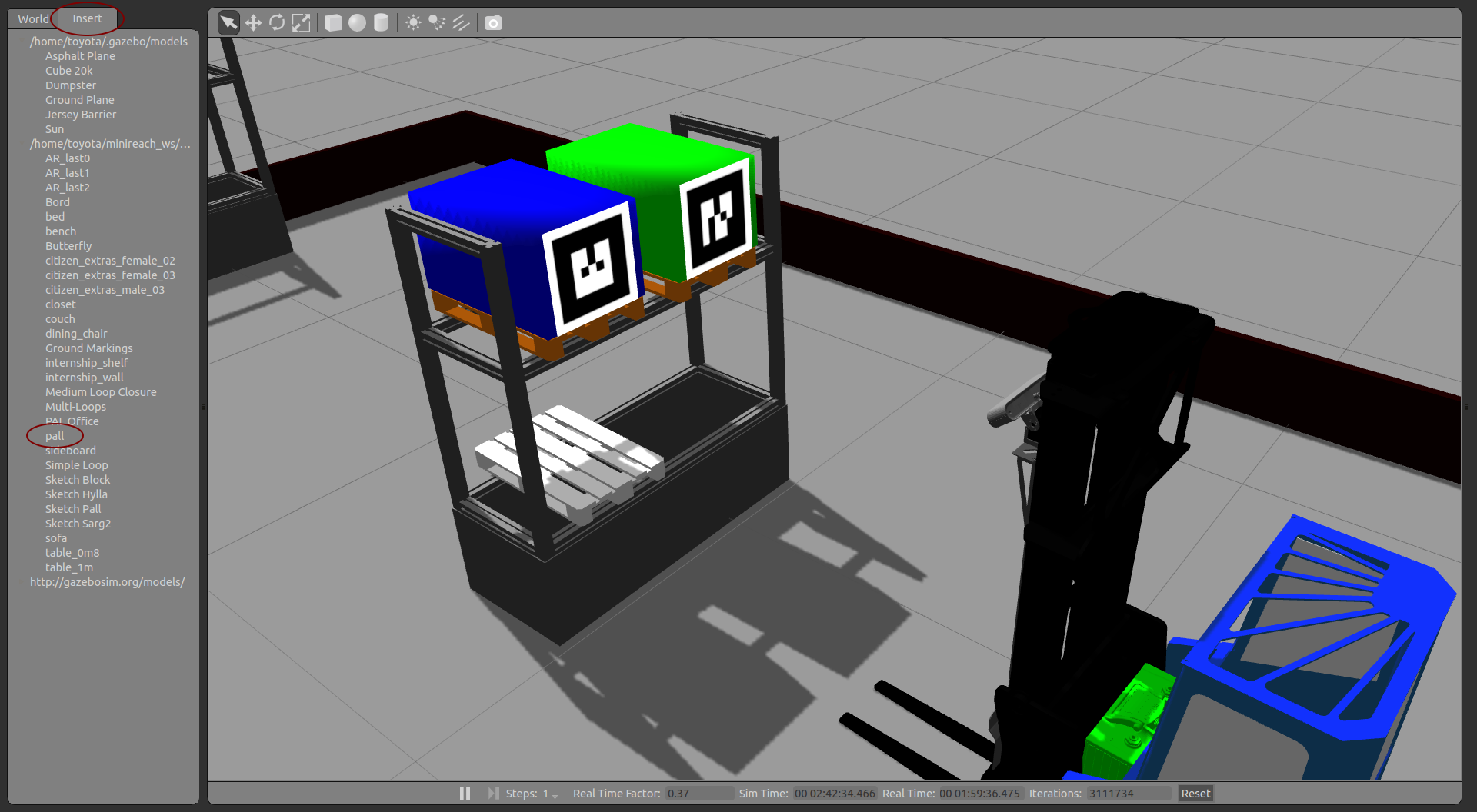
You can to this by selecting pall under the Insert tab and using the move tool to place it into the rack.
You also need to give the pallet an ID and tell the truck where it is in order to be able to interact with it. At the time of writing this tutorial, there is no way to do this using a graphical interface. (This may have been added when you read this…)
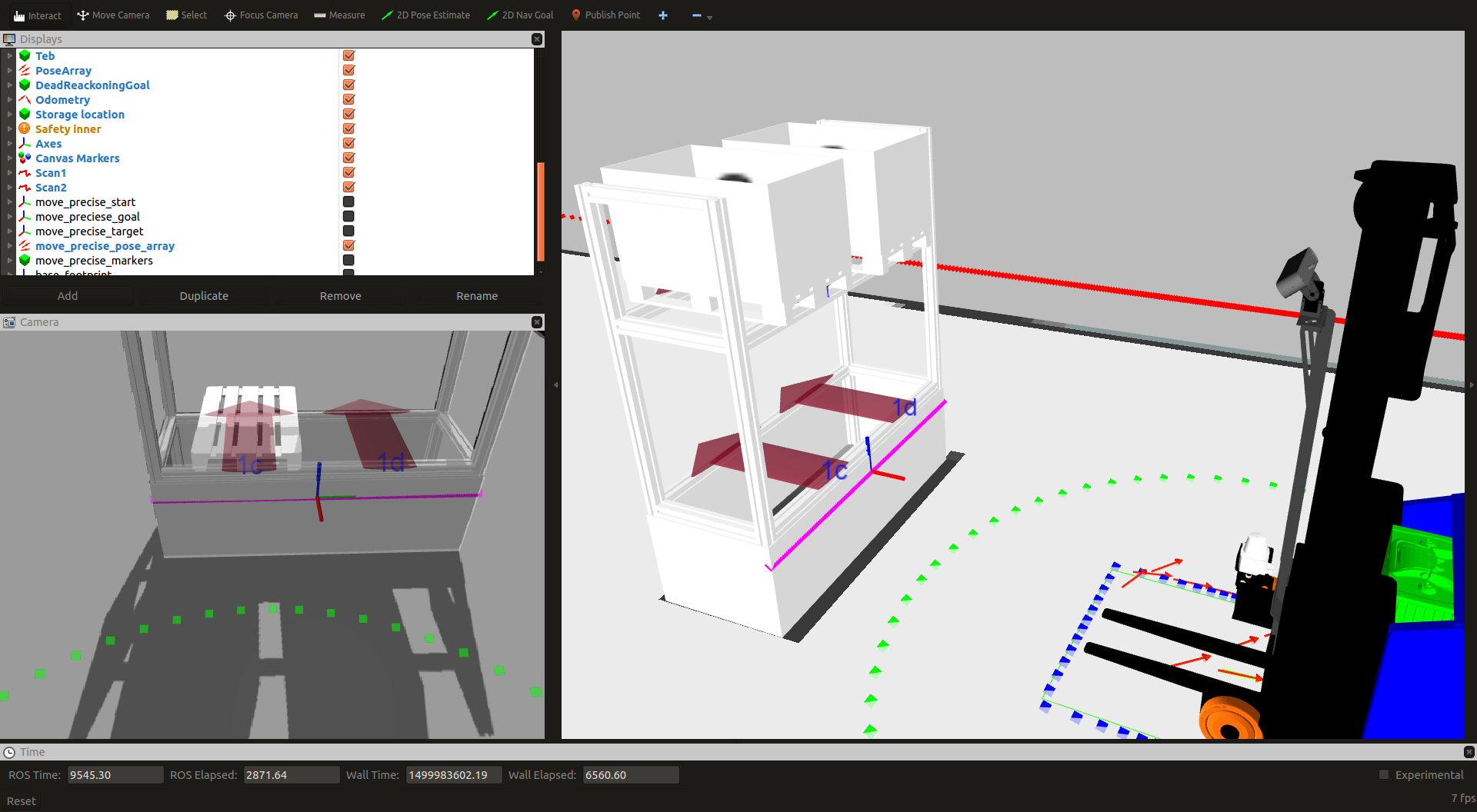
For now you can use the following terminal command to add an empty pallet with ID 9 to storage location 1c.
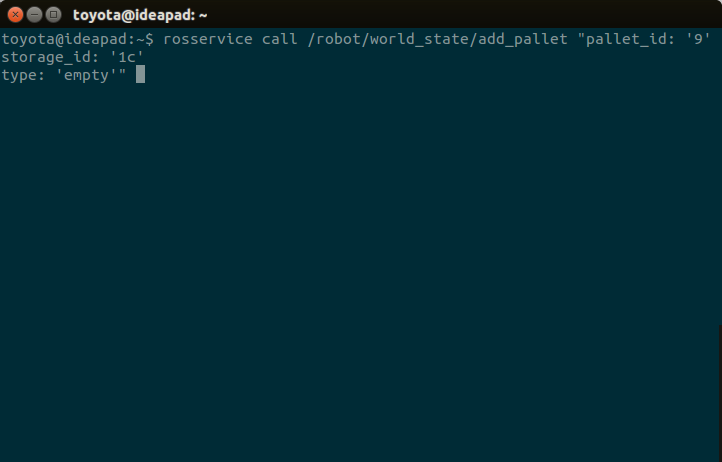
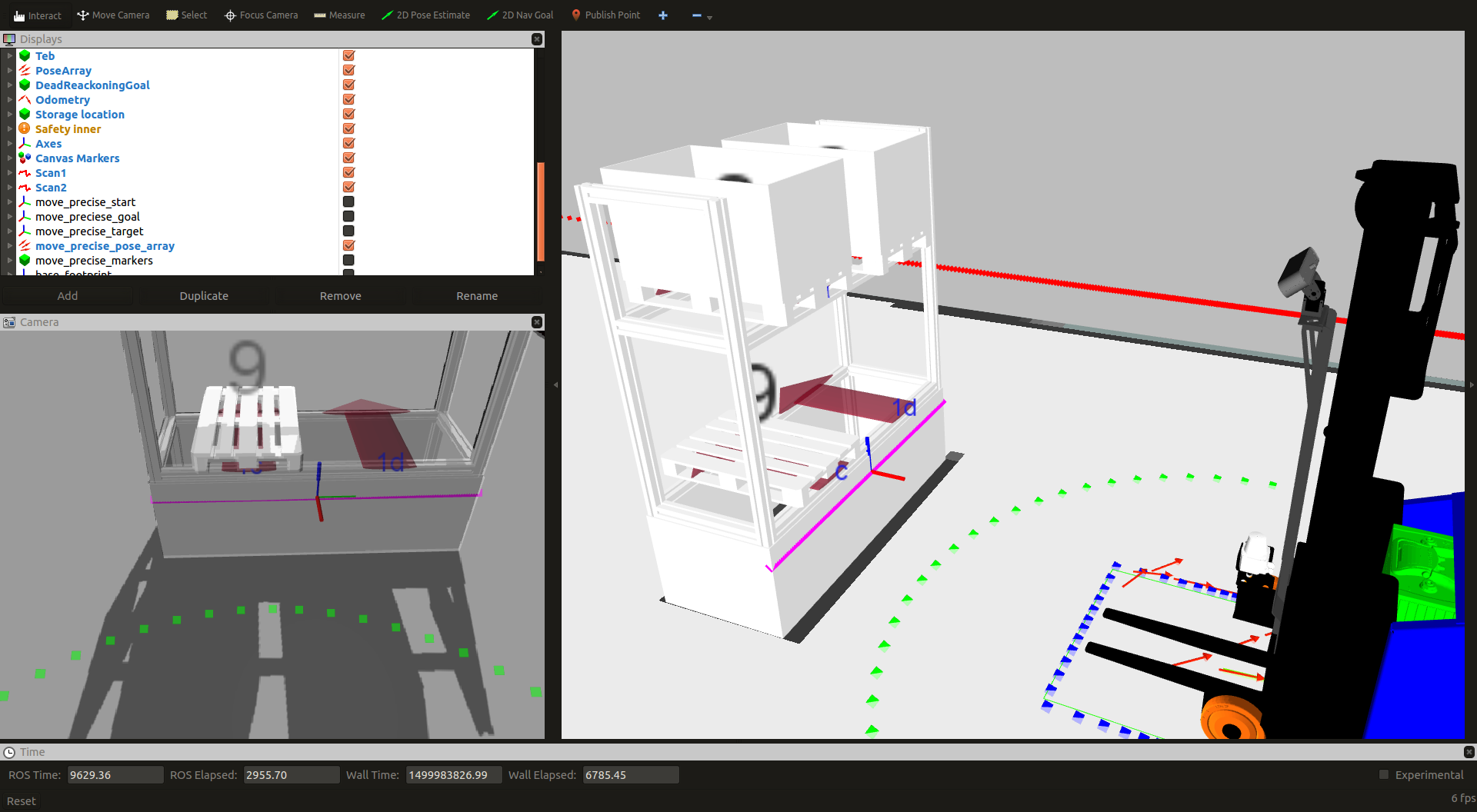
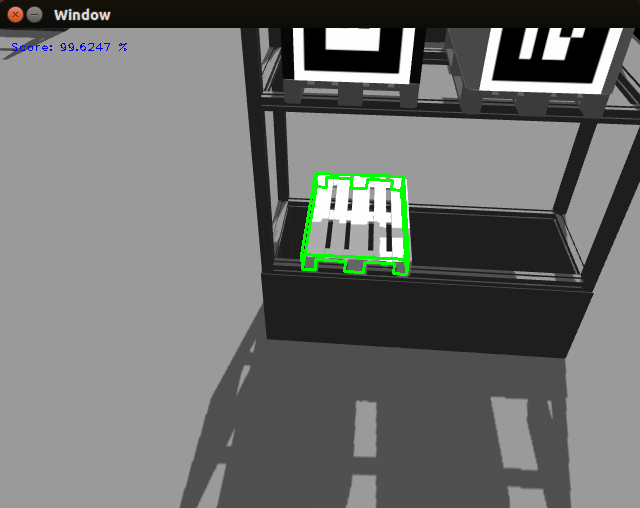
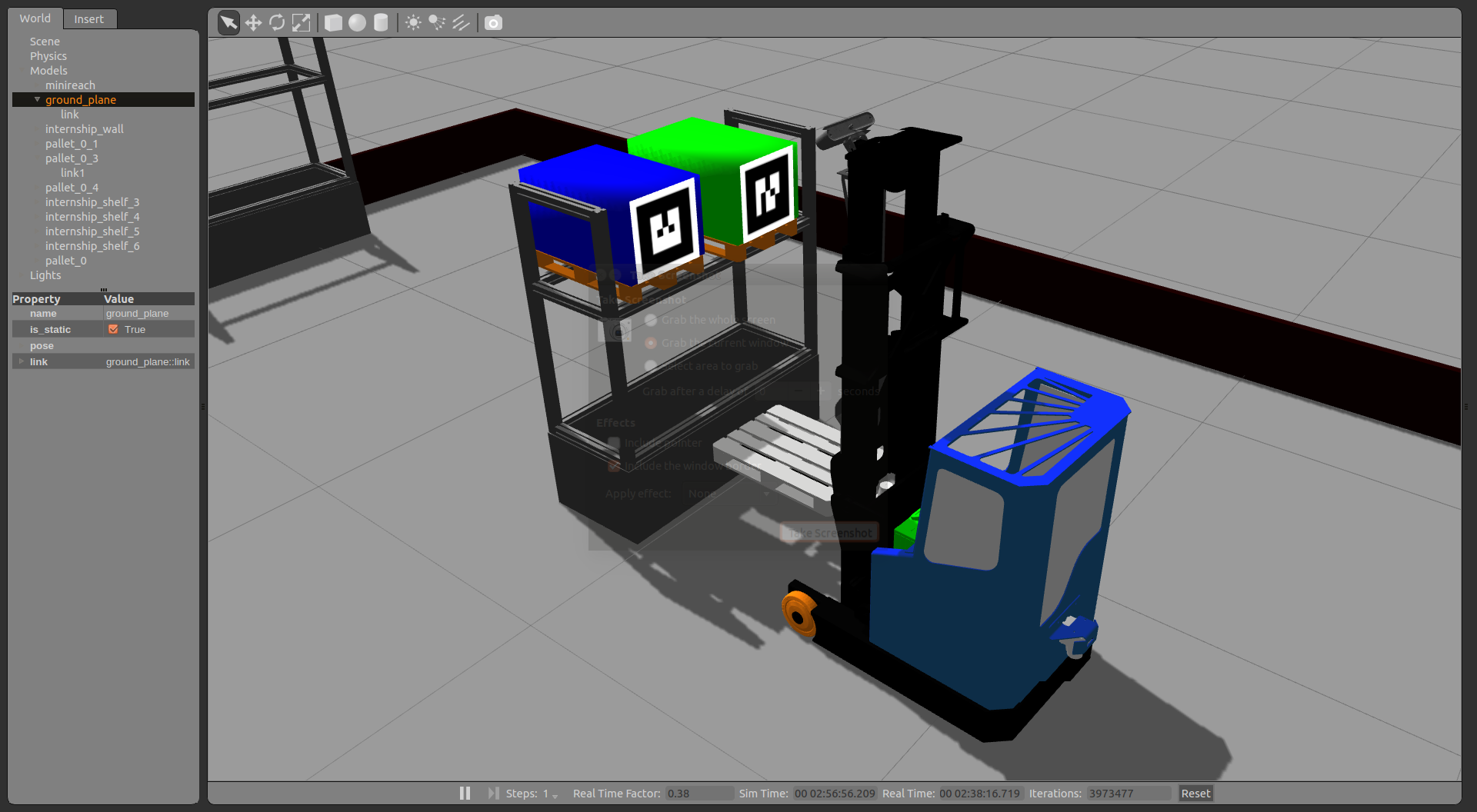
You can use the grapical interface to send a mission in the same way you did before. The truck will use the camera and VISP to try to match a 3d model to a pallet in the specified storage location and start tracking it.

Running demo on real trucks
Running the demo on the real truck is pretty similar to running it in simulation with some extra steps. First turn on the main power switch and the industrial computer. You should be able to use NoMachine to open a remote destkop on the truck computer and connect your computer to it.
User: toyota, Password: minireach
If the remote desktop does not work, you may need to ssh into the truck:
ssh toyota@minireachX
Use the same password as above, and X is the number of truck depending on which truck you want to connect to. Then you can restart the server by writing following command in the terminal:
sudo /etc/init.d/nxserver restart
On the remote desktop, you sould be able to run the following in a terminal:
rocon_remocon
At this point the interface (Qt remocon) should start and you can follow the same steps as in the simulation-tutorial above to start moving pallets.
If something does not work right away, refer to the troubleshooting section Troubleshooting