Tutorial: Robot Teleop
Using the Robot Joystick
Whenever the robot drivers are running, so is joystick teleop. The joystick is capable of controlling the movement of the robot base. (fork, reach and 3D camera control is currenty disabled because they are position controlled).

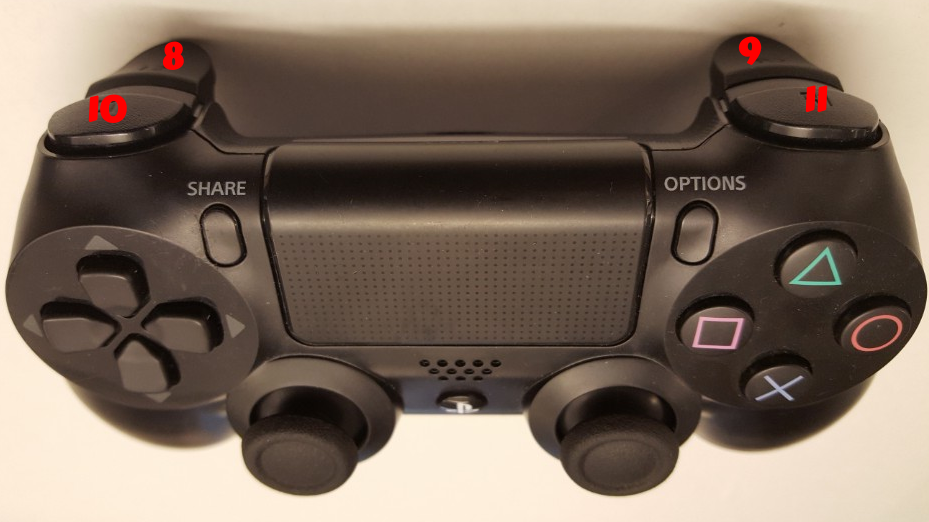
| Button # | Function (details below) |
|---|---|
| 0 | Not used |
| 1 | Control robot movement |
| 2 | Control fork up/down (disabled) |
| 3 | Not used |
| 4 | Not used |
| 5 | Not used |
| 6 | Not used |
| 7 | Not used |
| 8 | Control reach in (disabled) |
| 9 | Control reach out (disabled) |
| 10 | Primary deadman |
| 11 | Disable safety (not implemented) |
| 12 | Not used |
| 13 | Force log in to truck |
| 14 | Not used |
| 15 | Not used |
| 16 | Pair/unpair with robot |
To pair the controller with the robot, press the middle button (16) once the robot has powered on. The big LED on the controller will turn a solid blue when successful. To unpair, hold the button for 10 s. The blue LED indicator on the back will turn off.
To drive the robot base, hold the primary deadman button (button 10 above) and use the left joystick.
Warning
Whenever driving the robot, always lower the fork to avoid damaging objects and people
Moving the Base with your Keyboard
Note
You will need a computer with ROS installed to properly communicate with the robot. Please consult the ROS Wiki for more information. We strongly suggest an Ubuntu machine with ROS Indigo installed.
To teleoperate the robot base in simulation, we recommend
using the teleop_twist_keyboard.py script from
teleop_twist_keyboard
package.
>$ export ROS_MASTER_URI=http://<robot_name_or_ip>:11311
>$ export ROS_HOSTNAME=<robot_name_or_ip>:11311
>$ rosrun teleop_twist_keyboard teleop_twist_keyboard.py